Git and Github guide
Quick intro
What is Git?
Git is a version control system that tracks changes in your code or files over time, making it easy to collaborate and manage versions.
What is GitHub?
GitHub is an online platform for hosting Git repositories, allowing teams to collaborate and manage code in one central location.
Key terms
- Repository (Repo): A project folder managed by Git.
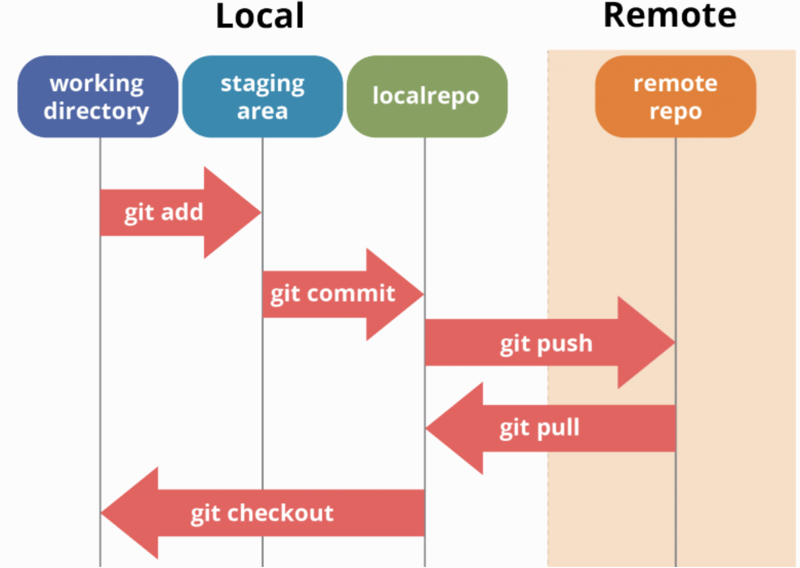
- Working Directory: The folder on your computer where your project files are located. Files here can be tracked (managed by Git) or untracked (not yet under Git’s control).
- Staging Area: A place where changes are prepared (or “staged”) before committing.
- Local Repository: A database on your computer where Git stores committed changes.
- Remote Repository: A shared repository hosted online (e.g., on GitHub). Allows team members to collaborate and share changes.
- Branch: A separate line of development for working on features independently.
- Commit: A snapshot of changes in your project history.
- Push: Upload local commits to the remote repository.
- Pull: Download changes from the remote repository.
Set up Git
git config --global user.name "Your Name"
git config --global user.email "your.email@example.com"
Clone our repository
git clone https://github.com/TianhaoW/AllofQuant
General Workflow
Always update your local repo before making changes
git pull origin main # Get the most recent version of the main branch
Make your changes and stage the changes
git add <file-name>       # This will only stage the file-name to staging area
git add .                 # This will stage all changes
Commit your changes with a message
git commit -m "Describe your changes"
Push your changes to Github
git push origin main

# Use the following command if you are working on a different branch
git push origin <your branch name>
Branches
Key terms
- Branch: A branch is a lightweight, movable pointer to a commit in your Git repository. The default branch when you initialize a repository is typically called main or master.
- HEAD: HEAD is a pointer that represents your current working branch. When you commit, HEAD moves to the latest commit on the active branch.
- Branching and Merging: Branches allow you to diverge from the main line of development to work independently. You can later merge the branch back into the main branch or any other branch.
- Branch Isolation: Changes made in one branch do not affect other branches, making it safe to experiment or develop features without risking the stability of the main branch.
List all branches
git branch
This will list all branches. The current branch is marked with *
Switch to a branch
git checkout <branch-name>    # old way
git switch <branch-name>      # recommended
- The HEAD will point to the latest commit on <branch-name>.
- Files tracked in the new branch will overwrite the corresponding files in your working directory.
- Untracked files in your working directory are not affected by the branch switch unless they conflict with files in the new branch.
- The staging area will remain unless there is a conflict.
Switch and create a new branch
git checkout -b <branch-name>     # old way
git switch -c <branch-name>       # recommended
Stash the working directory and switch branch
git stash       # This will temporarily store modified tracked files in order to change branches
git switch <branch-name>
git stash pop   # This will recover those changes before switching the branch
Integrate changes from one branch to another
Merge
# Merge the changes in target branch into the current branch
git merge <branch-name>

# If there are conflict, resolve conflicts first and then:
git add <resolved-files>
git commit

# If the branch being merged is no longer needed, we can delete it
git branch -d <branch-name>
- This will merge the changes in <branch-name> to the current branch, and create a ‘merge’ commit.
- The HEAD will remain on the current branch, and the merge commit become the new HEAD.
- The target branches are untouched.
- The working directory is updated to reflect the merged result. If there are conflicts, git will pause the merge.
- Git will mark the files with conflicts. After resolving the conflicts, those files must be staged before completing the merge.
- In practice, we switch to the main branch, and merge the changes in a feature branch into the main branch.
original commit history before merge:
main: A---B---C---D
feature:      E---F
------------------------------------------------------------
git switch main
git merge feature
------------------------------------------------------------
Git merge will create the merged commit M in the main branch
It has all changes from the feature branch
main: A---B---C---D---M
feature:      E---F
Rebase
# This will rebase the current branch onto the target branch
git rebase <branch-name>

# If there are conflicts, resolve the conflicts manually and
git add <resolved-files>
git rebase --continue
- Moves or “replays” the commits from target branch to current branch.
- Creates a linear history, rewriting the commits as if they were based on the latest commit of the target branch.
- The target branch is unaffected
- Conflicts must be resolved at each commit point
original commit history before rebase:
main: A---B---C---D
feature:      E---F
------------------------------------------------------------
git switch feature
git rebase main
------------------------------------------------------------
Git will rewrite the commit E',F' as they are based in D
main: A---B---C---D
feature:              E'---F'
The HEAD is at F' now